


The hardest part of switching tasks isn't leaving. It's coming back: finding the six windows that made up the work after a call, a lunch or a whole weekend. Workgroups are our cheerful answer to coming back!


 Client sitePortfolioTaxes+
 Safari
 Safari
 Photoshop
 Terminal
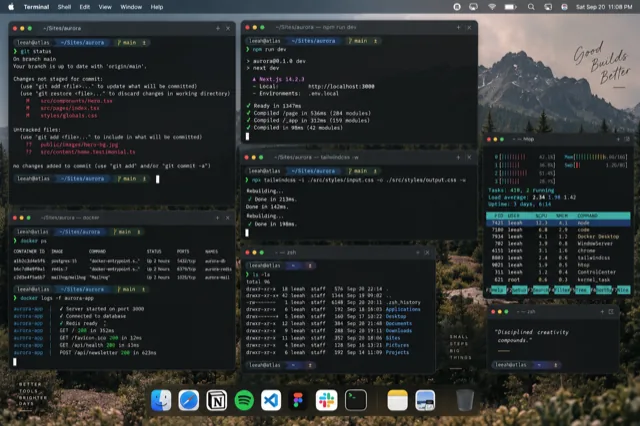
A workgroup called Client site: five windows, one key.
Coming back is the hard part
Picture it. You've got a client project humming along: the staging site in Safari, the design file, the assets folder in Finder, a terminal, and the feedback thread. Then the phone rings. Or lunch happens. Or it's Friday afternoon, and Monday feels a long way off.
When you come back, the work is scattered. Some windows are buried behind others, a couple got closed, and one is minimized somewhere in the Dock. Before you can do anything useful, you have to rebuild the picture in your head: what was open, where it was, and what you were doing with it.
That rebuild is sneaky. It doesn't feel like work, but it eats the first chunk of every return. Workgroups are designed to shrink it. Instead of remembering six windows, you remember one name.
What a workgroup is
A workgroup is a named set of windows that belong to one piece of work. A client. A launch. A mood. The staging site, the design file, the assets folder, the terminal and the feedback thread, gathered under one name like Client site.
Once a set has a name, you can treat it as one thing. That's the whole idea, and it turns out to be a surprisingly big one.
Think of it like a labeled tray on your desk for everything that belongs to one job. You don't have to line the papers up or stack them in a special order. You just need to know which tray to grab. A workgroup is that tray, for open windows.
A group can mix apps, too. Browser windows, Finder folders, documents and terminals can all live together under one name, because that's how real projects look. Your work never stuck to one app, so your groups don't have to either.
Focus on one thing
Open the Canopy switcher with ⌥ Tab and pick the group's chip. Only its windows show. Let go and the whole group comes forward together.
If the rest of your Mac is noise, you can also choose to hide every other app while you're in the group. Your project steps forward, everything else steps politely out of the way, and nothing gets closed. It's a little like clearing your desk down to the one folder you need, except you don't have to put anything away.
This is lovely for context switches you can't avoid. A client pings you about their project while you're deep in another one? Pick their group, answer the question with everything you need right in front of you, then pick your original group and carry on.
Close things without losing them
Here's where it gets really good. Close a window that belongs to a group, on purpose or by accident, and it doesn't vanish from the group. It stays there marked Restore.
- Press ↵ on a Restore card to reopen that one window.
- Press ⌘ ↵ to reopen every closed member at once.
And reopening means the real thing: browser windows come back at their page, folders and documents open again, and even apps that aren't running yet come along. Tuesday's project is still there on Thursday, even if you closed half of it.
Groups also survive restarts, so shutting down your Mac for the weekend doesn't cost you a thing. That changes how closing feels. You can tidy up freely at the end of the day, knowing the group will bring it all back when you're ready.
Build groups your way
By hand
Right-click any card in the switcher and add it to a group. That's it. Build a group one window at a time as you work, or gather a whole project in a minute.
With a little help
Canopy can also notice patterns: windows you keep switching between within a few minutes, and sets of windows that tend to be open together over time. When it spots one, it can suggest a group. Nothing is saved until you say yes, so a suggestion that isn't quite right simply stays a suggestion.
Ideas for your first few groups
- One per client. The CMS, the staging site, the brand folder, the shared doc.
- One per deliverable. The Photoshop file, the reference page, the export folder, the feedback thread.
- One for admin. Mail, your calendar page and the invoicing tab. Bring it forward once a day, deal with it, then put it away.
- One for learning. The course page, your notes in Obsidian and the practice folder, ready whenever you have a spare half hour.
Name each group the way you'd say it out loud: Client site, Q4 campaign, Taxes. Short, plain names are the easiest to spot when you're in a hurry.
What workgroups never do
Canopy never moves a window, resizes one, or creates or switches a macOS Space. A workgroup is a list of windows Canopy knows how to find, not a layout it imposes. If you like arranging your screen by hand, keep doing exactly that!
| You might expect a workgroup to... | What it actually does |
|---|---|
| Snap windows into a saved layout | Leaves every window exactly where you put it |
| Create a new Space for the project | Never creates or switches Spaces |
| Forget the windows you closed | Keeps them in the group, marked Restore |
| Vanish when you restart | Survives restarts |
| Save anything without asking | Only saves a suggested group when you say yes |
| Send your project list somewhere | Keeps workgroup data on your Mac |
A day with workgroups
- Morning. Pick the Client site group and press ⌘ ↵. Everything you closed last night comes back: the staging site at its page, the assets folder, the design file.
- Mid-morning. A different client calls. Pick their group; your first project steps back without closing.
- Lunch. Walk away without tidying a thing. When you're back, pick the group, let go, and the whole project comes forward.
- Afternoon. Canopy suggests a group for the three windows you keep bouncing between for a new idea. Say yes and name it.
- Evening. Close everything. The groups remember.
Try it: your first group in five minutes
- Pick one real project. A client, a launch, a class. Something you'll come back to this week.
- Open its windows. The browser pages, the folder and the documents you actually use for it.
- Hold ⌥ Tab and right-click a card. Add it to a group and give the group the name you'd say out loud.
- Add the rest. Right-click each remaining card and add it to the same group.
- Test the comeback. Close one of the windows, open the switcher and pick the group's chip. See the Restore card? Press ↵ and it's back!
Keep your first group small: the five windows you actually use make a more useful group than every window you ever opened for the project. We walk through a full designer setup in A designer's Mac is more than one app, and the workspace guide covers the basics step by step.
When you can skip a group
Not everything needs one, and that's fine. If a task lives in a single window, or you'll be done with it in ten minutes, plain switching with ⌥ Tab is plenty. Workgroups shine for work that spans several apps and stretches across days: the projects you leave and come back to again and again.
Quick answers
Do workgroups move or resize my windows?
Never. Canopy doesn't move or resize windows, and it never creates or switches Spaces.
What happens if I close a window that's in a group?
It stays in the group marked Restore. Press ↵ to reopen it, or ⌘ ↵ to reopen every closed member.
Where is my workgroup data kept?
On your Mac. Workgroup data stays there, and your groups survive restarts.
Do I have to accept Canopy's suggestions?
Not at all. A suggestion is only an offer. Nothing is saved until you say yes, and you can always build groups by hand with a right-click instead.