


Client work is never just one window. It's the design file, the references, the assets, the feedback and the live site, all at once, and the project only moves when you can reach every one of them without losing your place. Here's a friendly, sturdy setup that holds up across a real project, from first sketch to final export.


 HearthlineLumora+
 Finder
 Finder
 SafariClient
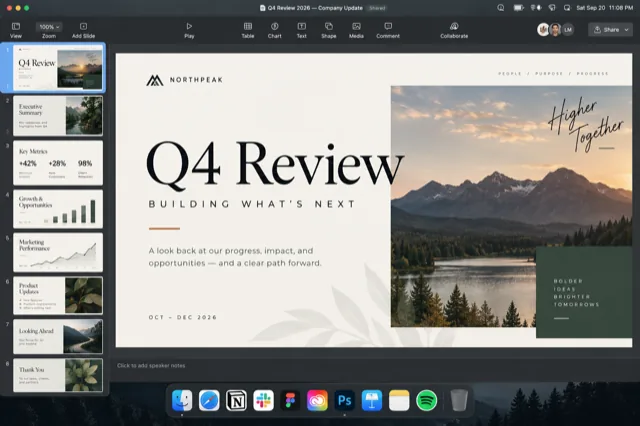 Keynote
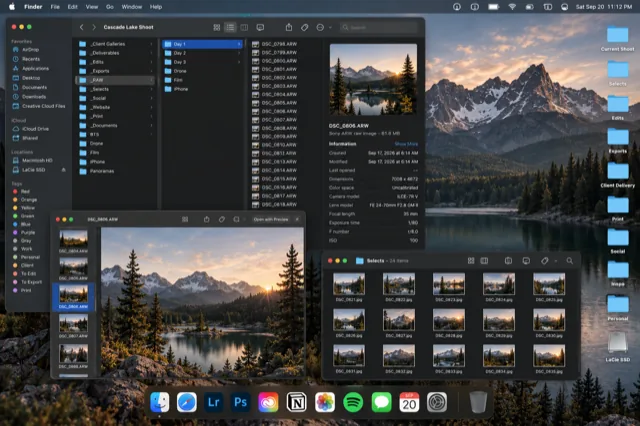
The client folder in front, with the rest of the project one key away.
The five windows of a client project
Almost every design project settles into the same five windows. See if these sound familiar:
- The work. The Photoshop, Illustrator or Figma file you're actually designing in.
- The references. A browser window of mood boards, competitor sites and inspiration.
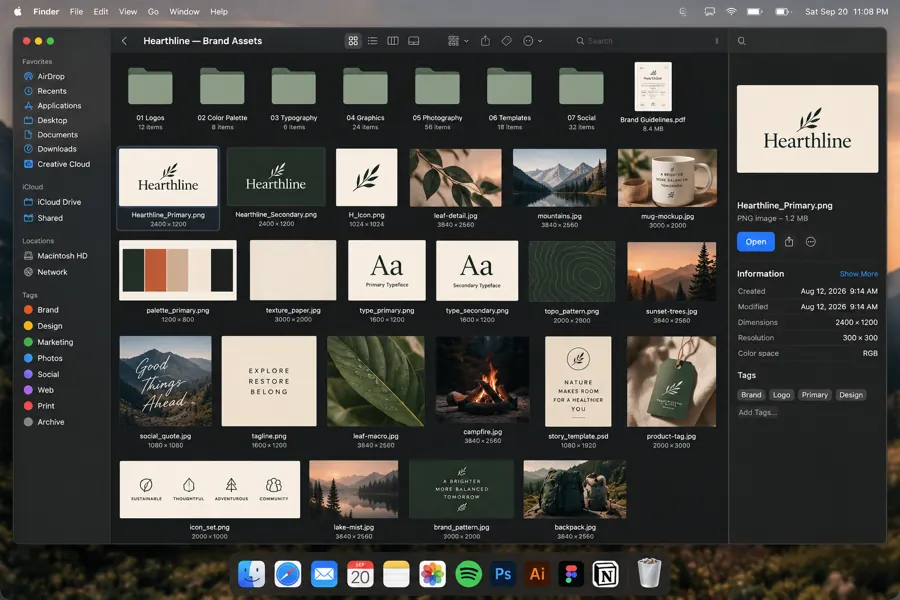
- The assets. A Finder window on the client's folder: logos, photos, fonts, exports.
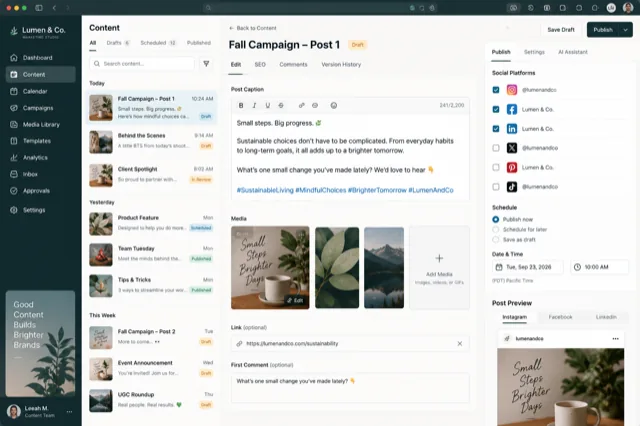
- The feedback. The email thread, Slack channel or comment view where decisions happen.
- The live thing. The staging site or proof where the work ends up.
Five windows, five jobs. The trouble isn't having them open. It's that on a busy day you bounce between them dozens of times, and every bounce is a tiny chance to lose your place.
Picture a normal Tuesday. You're nudging kerning on the brandboard when the client emails a new photo. You open the email, save the photo to the assets folder, drop it into the file, check how the hero looks on staging, then pop back to the mood board to compare. That's five switches before lunch for one small change, and each one starts with the same quiet question: where did I leave that window?
Why a creative Mac gets tangled so fast
Design work is uniquely good at confusing your Mac's built-in switching tools, for a few sneaky reasons:
- ⌘ Tab shows apps, not windows. Six documents open in Photoshop? You get one Photoshop icon.
- Adobe documents hide inside one window. Photoshop, Illustrator and InDesign open documents as tabs inside a single app window, so macOS only sees the outer frame. Our guide to working across several Photoshop documents explains the details.
- Browser windows are twins. The reference window and the staging window look identical from the outside.
- The feedback lives somewhere else entirely. A different app, a different window, usually buried.
None of these is a big deal on its own. Together, they turn "grab the logo from the assets folder" into a small scavenger hunt, many times a day. The good news? A little setup makes every one of them easy.
Step 1: give the client its own browser profile
Create a Safari profile (or Chrome profile) for the client, with its own color. Their logins, their Google account, their bookmarks, all kept separate from yours. Every window from that profile is instantly recognizable, because the profile's name and color sit right in the toolbar.
In Safari, choose Safari > Settings, click Profiles, and create a new profile with a name and color. In Chrome, click your profile picture at the top right and choose Add Chrome profile. The setup takes two minutes; here's the full walkthrough.
If you juggle several clients, this one step does a surprising amount of work. You'll never accidentally post to the wrong client's social account again, and you'll spot their windows by color from across the room.
Step 2: name and color everything
Recognition beats memory every time, so give your files and folders names you'll recognize at a glance. Here's a quick swap chart:
| Instead of... | Try... |
|---|---|
| Untitled-4.psd | acme_brandboard_v3.psd |
| logo FINAL final2.ai | acme_logo_v7_approved.ai |
| Screenshot with a timestamp | acme_homepage_feedback_nov02.png |
| A folder called New Folder | Acme Rebrand 2026 |
Version numbers in the name, always. They make every search, every Window menu and every switcher smarter, and they save you from the classic "which one did I send?" panic.
Then add color in Finder:
- Tag the client folder. Control-click it and choose a color above Tags. Once you've set up favorite tags, ⌃ 1 through ⌃ 7 add them to a selected item from the keyboard.
- See everything with that tag. Click the tag in the Finder sidebar and every tagged file and folder appears together.
- Keep the folder one click away. Drag the client folder into the Favorites section of the Finder sidebar. It's an alias, so nothing actually moves.
And in the browser, keep references in one window and the staging site in another, so each window means exactly one thing.
Step 3: make it a workgroup
Now for the fun part. Open the Canopy switcher with ⌥ Tab and right-click each of the five windows to add it to a new workgroup named after the client. From then on, picking that group's chip shows only the project's windows, and letting go brings them all forward together. If the rest of your Mac feels noisy, you can have Canopy hide the other apps while you're in the group.
Not sure which windows belong together? Canopy can notice the windows you keep switching between within a few minutes, and sets of windows that tend to be open together over time, and suggest a group. Nothing is saved until you say yes. Our workspace guide walks through the setup.
Groups survive restarts, and the group data stays on your Mac. One group per client works beautifully, and so does one per deliverable if a single client keeps you busy with several at once.
Step 4: work the day
Here's what a day inside this setup feels like:
- Start. Pick the group and press ⌘ ↵. Any member you closed yesterday reopens: the browser windows at their pages, the folder, the design file. Coffee's still hot!
- Design. Stay in the design file. When you need a color from the brand guide or a photo from the assets, hold ⌥ Tab, see it, grab it, come back. Photoshop documents each get their own card, so the brandboard and the hero image are never confused.
- Pick an asset. In the assets folder, select a photo and press the Space bar to preview it with Quick Look before you place it.
- Feedback call. The client asks about last week's version. If it's open, type "v2" in the switcher and there it is, filtered by file name.
- Another client interrupts. Switch to their group. This project steps back without closing a thing.
- End of day. Close whatever you like. The group remembers its members, marked Restore, and tomorrow starts with one key.
Small habits that keep it humming
A setup is only as good as the habits around it. These tiny ones keep the whole thing friendly for the life of a project:
- Save a new version, don't overwrite. When a round of feedback lands, save as v4 before you start. Your switcher, your Finder search and your client will all thank you.
- One exports folder per round. "Exports round 2" inside the client folder beats forty files in one pile.
- Close the references you're done with. Mood boards from the concept phase can go once the direction is locked. Fewer windows, clearer picture.
- Keep feedback in one place. If decisions arrive by email, chat and comments, pick one window as the home for the running list.
- Wrap up on Fridays. Close finished windows, tag anything that's now archive material, and let the workgroup remember the rest. Your Monday self will be delighted!
What this setup avoids (and when it's overkill)
Notice what's missing: no saved window layouts to maintain, and no dedicated desktop Space per client to keep in sync. Your windows sit wherever you left them. Canopy never moves or resizes them, and never creates or switches Spaces. The organizing happens in names, colors and one workgroup, which is the least fragile kind of organization there is.
And honestly? Not every day needs all of this. If you're spending a whole day inside one Figma file, or you only have one client this month, the naming habit alone will carry you. Profiles and workgroups shine when you're juggling two or more projects, or when interruptions are part of the job. Start with whichever step solves the thing that bugs you most, and add the rest when you feel the need.
Quick answers
Do I need a separate browser profile for every client?
Only for clients whose logins and accounts you use. For everyone else, one Work profile plus a dedicated references window is plenty.
Will Canopy rearrange my windows?
Nope! Canopy never moves or resizes windows. It only brings the ones you pick to the front.
What if I close the design file by accident?
It stays in its workgroup marked Restore. Select it and press ↵ to reopen it, or ⌘ ↵ to reopen every closed member at once.