


macOS has more window shortcuts than most people ever learn, and a few of the very best are hiding inside other shortcuts. Here's every one worth knowing, ranked from most useful to least, with the catch in each and a bonus round at the end.
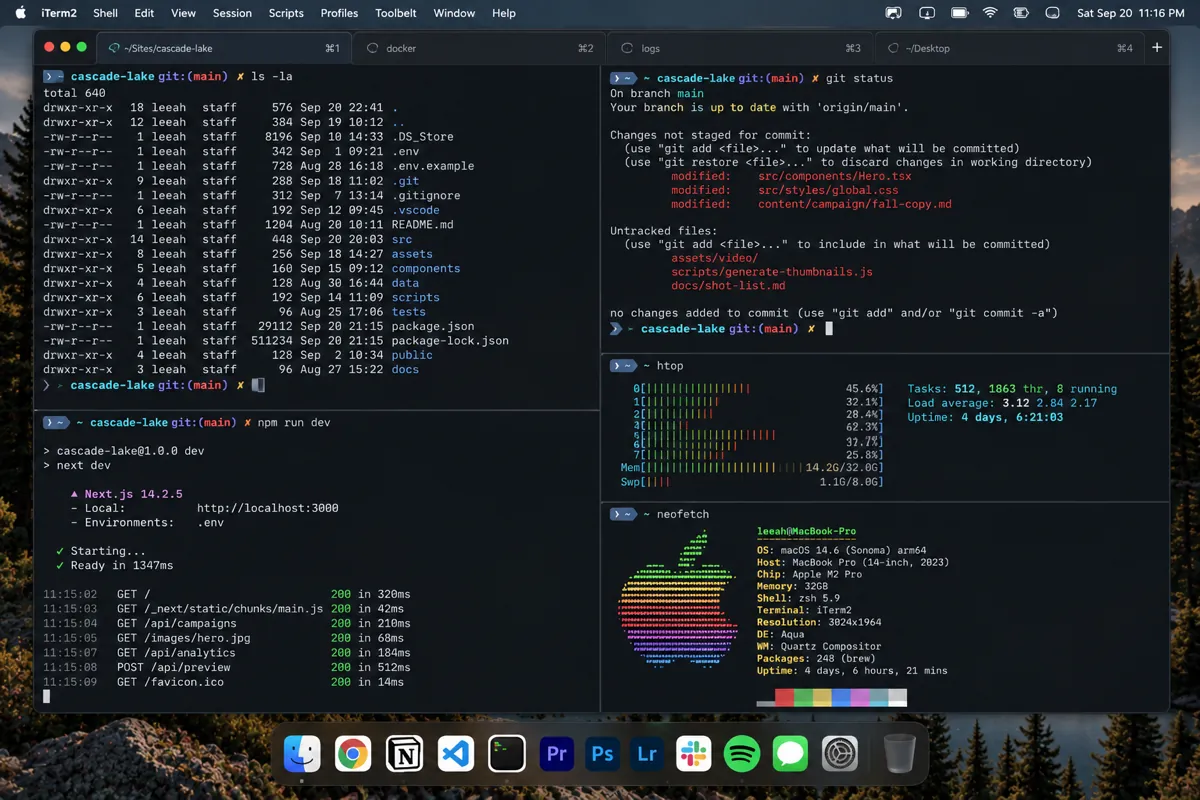


 OpsWeekly+
 iTerm
iTerm Safari
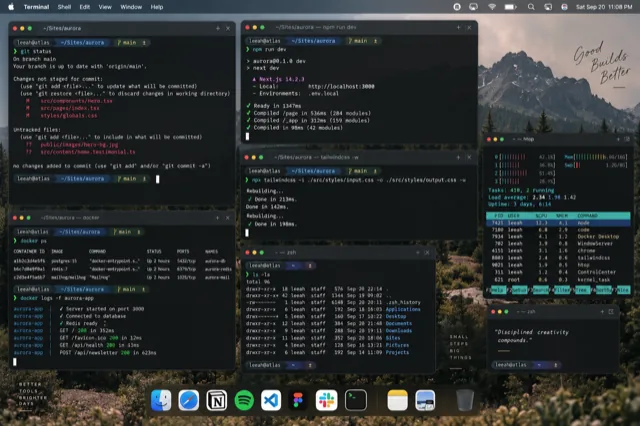 TerminalMinimized
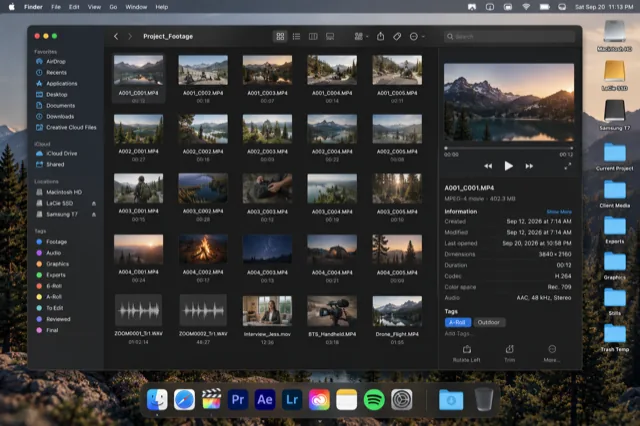 Finder
One key, every window, including the minimized terminal.
The ranking at a glance
Here's the whole list in one place. Screenshot it, print it, stick it next to your monitor. Then read on for why each one landed where it did.
| # | Shortcut | What it does |
|---|---|---|
| 1 | ⌘ Tab | Switch to the app you used last. Hold ⌘ and keep tapping Tab to go further back. |
| 2 | ⌘ ` | Next window of the current app. Add ⇧ to go backwards. |
| 3 | ⌘ H | Hide the current app and all its windows. |
| 4 | ⌘ ⌥ H | Hide every app except the one in front. |
| 5 | ⌘ Tab then ↓ | Show every window of the selected app. |
| 6 | ⌃ ↓ | App Exposé: every window of the current app, spread out. |
| 7 | ⌃ ↑ | Mission Control: every window of every app, plus your Spaces. |
| 8 | fn ⌃ ← → | Tile the window to the left or right half (macOS Sequoia and later). fn ⌃ F fills the screen, fn ⌃ R returns it to its previous size. |
| 9 | ⌘ W / ⌘ ⌥ W | Close the window / close all of the app's windows. |
| 10 | ⌃ ← → | Move to the Space on the left or right. |
| 11 | ⌘ ⌃ F | Toggle full screen for the window. |
| 12 | ⌘ M / ⌘ ⌥ M | Minimize the window / all of the app's windows. |
1 and 2: the everyday power couple
⌘ Tab gets you to the app, and ⌘ ` gets you to the window. Between them they cover most of the switching you do in a day, as long as you remember where things are.
⌘ Tab earns the top spot because it's fast, it works everywhere, and it lists apps in the order you used them, so the app you just left is always one tap away. Hold ⌘ and keep tapping Tab to go further back, or use the left and right arrow keys once the switcher is open. It also hides some lovely bonuses. While the switcher is showing:
- Press Q to quit the highlighted app, or H to hide it, without leaving the switcher.
- Press Esc (or the period key) to cancel, and you'll stay right where you were.
⌘ ` (the key above Tab on US keyboards) is its quieter partner. It cycles through the windows of whichever app is in front, and adding ⇧ goes backwards. It's perfect for two or three windows, and a bit of a guessing game at ten, because it never shows you what's coming next.
3 and 4: hiding, the tidy-up hero
Hiding is the most underrated move on the Mac. ⌘ H clears an app's windows off the screen but keeps them in the normal switching flow: switch back to the app and everything returns exactly as it was. No digging through the Dock, no tiny thumbnails, no secret moves.
⌘ ⌥ H goes one step further and hides every app except the one in front. It's the fastest way to get a clean, quiet desk around the thing you're doing right now. Starting a writing session? About to share your screen on a call? This is your shortcut!
Want to hide without even reaching for the keyboard? Option-click the current app's icon in the Dock to jump back to the app you were using before and hide the one you're leaving. Or Option-Command-click another app's Dock icon to switch to it and hide all the others in one go. Tidying as you go, for free!
These two rank above the "seeing" shortcuts for a simple reason: they prevent the hunt in the first place. Less on the screen means the right window is easier to spot.
5, 6 and 7: the shortcuts that let you see
5: the arrow-key trick inside Cmd+Tab
Pressing ↓ while the ⌘ Tab switcher is open is the single most useful trick most people have never seen. It turns the app switcher into a window picker for the highlighted app: its windows spread out, and you choose one with the arrow keys and ↵. Really!
6: App Exposé
⌃ ↓ does the same for whatever app is already in front, no ⌘ Tab required. It's lovely when you're already in the right app and just need to see its windows side by side. Depending on your version of macOS, minimized windows may show up here too, below the others.
7: Mission Control
⌃ ↑ spreads every window on the current desktop into one layer, with your Spaces along the top. It's brilliant for a quick "what's even open?" overview and for managing Spaces. It's less brilliant for finding one specific window: thumbnails shrink as windows multiply, and minimized windows are left out. Tip: turn on Group windows by application in System Settings → Desktop & Dock (under Mission Control) to keep each app's windows together.
8 to 12: arranging, closing and hopping around
8: tiling
Built-in tiling arrived with macOS Sequoia. fn ⌃ ← and fn ⌃ → snap a window to half the screen, fn ⌃ F fills it, and fn ⌃ R puts it back. Two more worth knowing: fn ⌃ C centers the window, and adding ⇧ to the arrow shortcuts arranges windows in pairs, such as a Left & Right layout. You'll find the layouts under Window → Move & Resize, too. Tiling is great if you arrange windows by hand; apps like Rectangle add even more positions if you want them.
9: closing
⌘ W closes the front window, and ⌘ ⌥ W closes all of the app's windows. Closing a finished window is a small kindness to tomorrow's you. And there's a safety net: in Safari and Chrome, ⇧ ⌘ T brings back what you just closed.
10 and 11: Spaces and full screen
⌃ ← and ⌃ → hop between Spaces, and ⌘ ⌃ F sends a window into full screen, which gives it a Space of its own. Both are wonderful if you organize by desktop, and both can make a window feel lost if you forget where you put it.
12: minimize, last on purpose
Minimized windows drop out of ⌘ Tab and Mission Control. There's one rescue: tab to the app in the switcher, then hold ⌥ as you release ⌘, and a minimized window comes back. But most of the time, ⌘ H is what you actually wanted. Our guide on why Cmd-Tab hides minimized windows walks through it.
Bonus round: five more worth knowing
- ⌘ ⌥ D shows or hides the Dock. Handy on a small laptop screen when every pixel counts.
- ⌘ with the Mission Control key sweeps every window aside to show the desktop. On a trackpad, spread your thumb and three fingers apart for the same effect.
- ⌘ ⌥ Esc opens Force Quit, for the rare app that stops responding.
- ⌃ Tab moves to the next tab in Safari, and ⌃ ⇧ Tab goes back one.
- ⌘ ⇧ A opens Tab Search in Chrome, so you can find an open tab by typing a few letters.
Try it: learn three a week
Nobody learns twelve shortcuts in an afternoon, and nobody needs to! Here's a gentle plan:
- Week 1: the basics. ⌘ Tab, ⌘ ` and ⌘ H. Use them on purpose until your hands reach for them on their own.
- Week 2: the seeing trio. The ↓ trick inside ⌘ Tab, App Exposé and Mission Control. Notice which one you like best.
- Week 3: the arrangers. ⌘ ⌥ H, tiling and ⌘ W. Start each focused task with a clean, tidy screen.
Three weeks from now, the table above will feel less like homework and more like second nature. You've got this!
The one we added
Full disclosure: we make Canopy CMD, so ⌥ Tab is our shortcut, not Apple's. Hold it anywhere to see every window from the apps in Canopy's roster as a live preview, including minimized windows and each Photoshop, Illustrator, InDesign and Acrobat document, then type to filter or release to switch. Inside Safari, ⌘ ` opens the same view for Safari windows. It sits alongside every shortcut above rather than replacing any of them, and it's built for the moment the built-in tools find hardest: one specific window among many.
Quick answers
What's the difference between hiding and minimizing?
Hiding (⌘ H) tucks away every window of an app, and they all come back when you switch to it. Minimizing (⌘ M) sends one window to the Dock, where most switching tools skip right past it.
Why don't the tiling shortcuts work on my Mac?
Built-in tiling needs macOS Sequoia or later. On earlier versions, hover over a window's green button to see what your version offers.
Can I change the Mission Control shortcuts?
Yes. In System Settings → Desktop & Dock, the Shortcuts button in the Mission Control section lets you view or change the shortcuts for Mission Control, the current app's windows and the desktop.